Home Design Generator from Uploaded Images with AI in Homestyler: Step-by-Step Guide

Hey There! Some links on InexDecor.com are affiliate links. If you make a purchase through them, we may earn a small commission at no extra cost to you. We only recommend trusted products to support our content. Thank you for your support!
Some links on InexDecor.com are affiliate links. If you make a purchase through them, we may earn a small commission at no extra cost to you.
Photo by Beyza Kılıçdere on Pexels
Introduction
home design generator from uploaded images with AI in Homestyler is the fastest way to see your own room redesigned without drawing a single line. You already have the hardest part, a photo of the room you actually live in. Upload it, describe the look you want in plain words, and the AI shows you a finished design in minutes. No floor plan, no measurements, no design training.
Most people know what bothers them about a room. The dark corner, the sofa that never looked right, the empty wall, but they cannot picture the fix. A photo-based generator removes that guessing: you see your own walls, window and floor with a new palette, new furniture and warm evening light. This guide shows you how to photograph a room, upload it, write a prompt, refine the best version, rebuild it in 3D, and turn the render into a shopping list.
Key Takeaways
- Start with a photo: upload it, describe the look you want, and the AI generates a finished design in minutes.
- A good photo decides the result: straight, bright, whole room in frame, surfaces tidy.
- Generate two or three versions, keep the calmest, refine only that one.
- A generated image is a picture, not a plan, rebuild the winner in 3D with real measurements first.
- One palette across the whole house makes every room feel connected.
Table of Contents
Introduction | Key Takeaways | What Is a Home Design Generator from Uploaded Images with AI in Homestyler? | How to Generate a Home Design from Your Photo. Step by Step | 5 Photo-to-Design Ideas to Try First | Colour and Lighting That Work from a Photo | Layouts That Fit Your Real Room | Common Mistakes to Avoid | Budget Tiers | Homestyler vs Planner 5D vs Coohom | Frequently Asked Questions | Conclusion
What Is a Home Design Generator from Uploaded Images with AI in Homestyler?
A home design generator from uploaded images with AI in Homestyler turns a photo of your room into a complete new design. You upload a picture: your living room, bedroom or kitchen, and describe what you want in one or two sentences: style, colours, biggest furniture, mood. The AI reads the photo, keeps the room’s real shape, windows and doors, and generates a finished version in the style you asked for. No drawing, no measuring, no design training.
Homestyler combines three things in one free plan: the AI restyle tool, which works from photos; a 3D planner, where you rebuild the best design with your real room sizes; and a render engine that shows the result in daylight and at dusk.
The photo-first workflow suits beginners because it needs no drawing skill. You start from the room you already have, with its real light, window and floor. For the whole-home version, see our home design with AI in Homestyler guide, and for the text-only version see our free house design generator with AI in Homestyler guide.
How to Generate a Home Design from Your Photo: Step by Step
Generate a new design from one photo in an evening, in seven steps.
Step 1: Photograph the room properly
Stand in the doorway at eye level and photograph the whole room in daylight, curtains open and surfaces tidy. Take a second photo from the opposite corner, and hold the phone straight, a tilted photo confuses the AI, and a dark photo hides the wall colour. A straight, bright photo gives the AI a clean starting point: it reads the light, the wall colour and fixed features such as a fireplace.
Step 2: Upload your photo to Homestyler
Open Homestyler, start a new AI restyle, and upload the best photo from Step 1. Check the whole room is in frame. The AI needs the floor, the ceiling line and at least one window. If the photo is cropped too tight, the AI invents furniture that does not fit. Upload the widest, brightest shot you have.
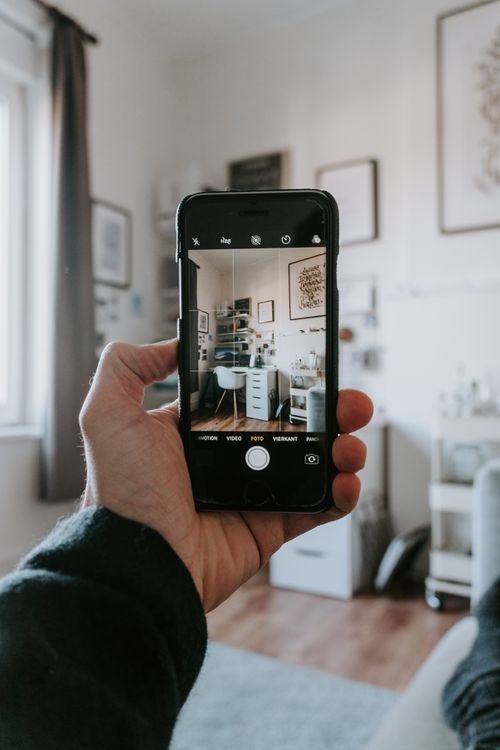
Photo by Tom Verdoot on Pexels
Step 3: Write a prompt that works
Write one or two sentences: the style, the main colours, the biggest furniture and the mood. For example: “Bright modern living room, white walls, light oak floor, low white sofa, blue cushions, warm evening light.” Avoid vague words like “nice”. The AI needs concrete details. Name the style, then the walls, the floor, the furniture and the light.
Step 4: Generate two or three versions
Let the AI generate two or three versions from the same photo and prompt. Do not judge the first one alone. The second or third is often better. Save the calmest version, and note what you like: the sofa, the palette, the light. If all three look wrong, retake the photo in daylight, or name the colours more clearly.
Step 5: Refine the best version
Refinement is where a good design becomes yours. Change one thing at a time: swap the sofa colour, move the rug, try a darker accent wall, or add plants. Generate again after each change and compare. If a change makes the room worse, go back. Refine the winner, never start over. Two or three small refinements are enough; more means the direction was wrong, and a fresh prompt is faster.
Step 6: Rebuild the design in 3D with real measurements
Rebuild the winning design in Homestyler’s 3D planner with your real measurements: room size, ceiling height, windows and doors. Place the big furniture first: sofa, bed, dining table, and check the walkways: 75 cm between sofa and table, 60 cm beside the bed, 90 cm on the main path. A sofa that looked right in the restyle can block a walkway in 3D.
Step 7: Render, compare, and make your shopping list
Render the 3D design in daylight and at dusk, then compare it with your original photo. Check four things: a clear walkway, a calm palette, warm light at dusk, and nothing crowded. Save the renders as your shopping list. Every piece has a size, a colour and a place. Buy the big pieces first.
Try Homestyler free and restyle your first room from a photo tonight, free.
5 Photo-to-Design Ideas to Try First
Start with one of these five ideas: cheap, fast, and visible the same day. Test each one from a photo first, free.
1. Restyle the room you use most
Start with the living room or bedroom, not the hallway. Upload a photo of the room you sit in every evening and try the style you have always wanted. One finished room teaches you more about your taste than a month of browsing.
2. Test a bold accent wall from a photo
Afraid of a dark blue or sage green wall? Upload a photo and let the AI paint it for you. Test the colour at midday and at dusk before you buy paint. If it looks heavy at dusk, try a lighter shade. The render shows you in minutes what a painted wall would show you in a week.
3. See your furniture in a new layout
Upload a photo, then ask the AI for a different layout: sofa against the other wall, bed under the window, dining table turned around. A restyle shows you the new layout with your own walls and light, so you can judge it before moving anything heavy. For the room-by-room version, see our modern living room design with AI in Planner 5D guide.
4. Try a new palette on your own walls
White walls with light oak and sea blue suit almost every home, but the only way to know is to see it on your walls. Generate the same room in three palettes: sea blue, sage green, warm terracotta, then compare them at dusk. The calmest evening render is the one to build.
5. Preview a room before a renovation
Before you knock down a wall or replace a kitchen, upload a photo and generate the finished version. A restyle shows you whether the open plan feels bigger, whether the island fits, and whether the cabinets suit the light. A free render now is cheaper than a renovation you regret later.
Colour and Lighting That Work from a Photo
Colour and lighting decide whether a restyle looks like a photograph or a cartoon.
Choosing a palette from your own photo
Start with the light in the photo. A north-facing room needs warm whites and warm wood; a south-facing room can handle cooler whites and a stronger accent. Pick three colours only: a wall colour, a wood tone, one accent. Test the palette at midday and at dusk. A colour that looks fresh at noon can look cold at night.
Lighting every restyle at dusk
Render every room at dusk, not just at midday. A room that looks bright at noon can look grey and cold in the evening. One warm pendant, one floor lamp and one small table light give every room a glow a single ceiling bulb never achieves. Soft, warm shadows mean the lighting works; hard, cold shadows mean a bulb is the wrong temperature.
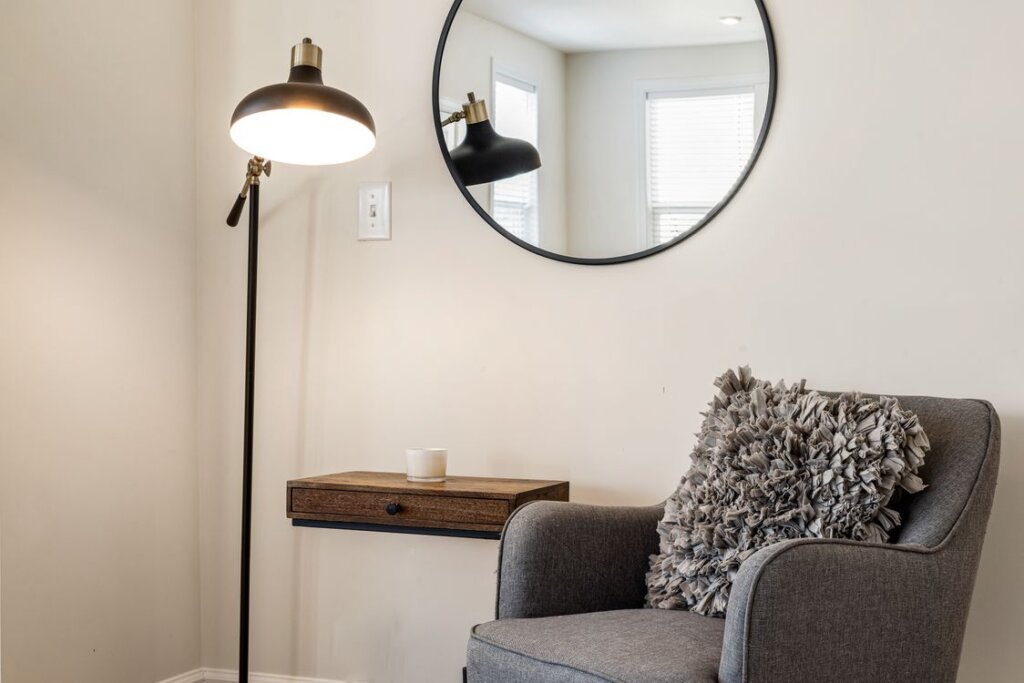
Photo by Curtis Adams on Pexels
Layouts That Fit Your Real Room
The right layout depends on the room in your photo. Measure first, then choose the layout that fits.
Small rooms
In a small room, every piece must do two jobs: a dining table doubles as a desk, a storage bench holds shoes and gives you a seat. Keep furniture low, floors mostly empty, one rug per zone, and the palette pale. If the generated layout looks crowded, the real room will feel crowded too. For the bedroom version, see our bedroom design with AI in Coohom guide.
Large rooms
A large room has the opposite problem: spaces that feel empty and disconnected. Give each zone one clear job, anchor each seating group with a large rug, put a tall plant in each empty corner, and keep the same palette everywhere. A restyle should show one focal point per zone: a sofa, a dining table, a reading chair, not five competing ones.
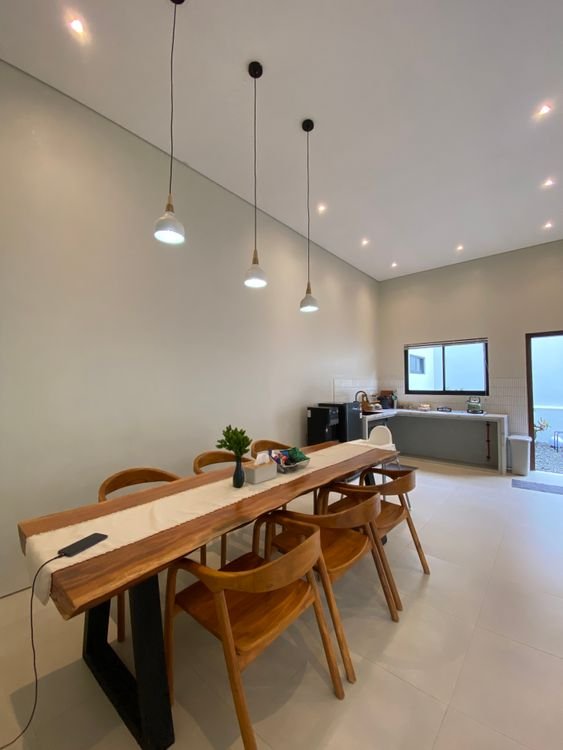
Photo by GALERI CREATOR on Pexels
Awkward rooms
Long, narrow or L-shaped rooms are where a photo generator earns its keep. Upload the photo and ask for a layout that fixes the awkwardness: furniture along one long wall, a rug to mark the zone, a mirror to bounce the light. Test two or three layouts and keep the one where the walkway stays clear. For the hallway version, see our coastal hallway design with AI in Homestyler guide.
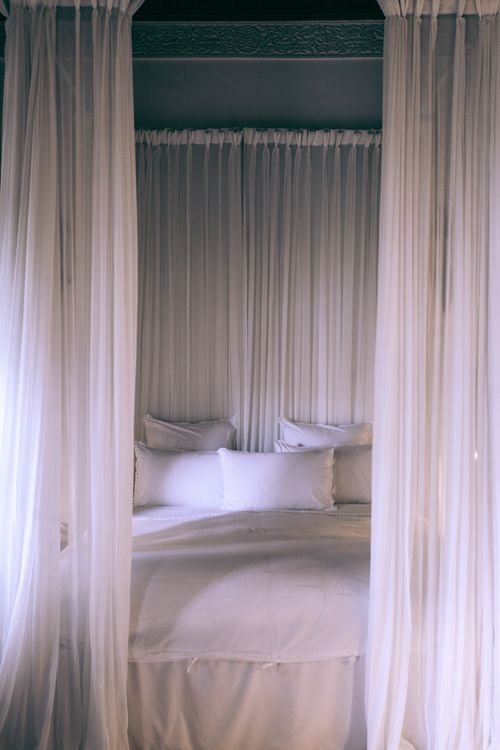
Photo by Maria Orlova on Pexels
Common Mistakes to Avoid
The most common mistake is a bad photo. A dark, tilted or cropped photo gives the AI nothing to work with, and the result looks generic: photograph in daylight, from the doorway, with the whole room in frame. The second mistake is a vague prompt: “design a nice room” gives the AI nothing, so name the style, colours and materials.
The third mistake is keeping only the first version: generate two or three, compare them, keep the calmest. The fourth is skipping the 3D rebuild: a sofa that looked right in the restyle can block a walkway. Draw first, buy second.
The fifth is a different colour in every room, five rooms in five colours feel like five different houses. One palette is the cure. The sixth is cool white light: use warm 2700K bulbs throughout.
Budget Tiers
Budget (under about $150 per room): A flat-weave rug, warm bulbs, a sheer curtain and one plant. This tier changes the feeling of a room without touching the furniture, and fixes the cheapest mistakes, cold light and a small rug.
Mid-range (about $150–$600 per room): Add a floor lamp, a mirror, a low bench or console, and paint in warm white or your accent colour. The sweet spot: real furniture and a finished palette, proven by a photo restyle first.
Full change ($600–$1,500+ per room): A low sofa or bed frame in the right wood tone, a large rug, a flat-front wardrobe, and matching textiles. Test it from a photo first, then rebuild it in 3D. A render can be changed in seconds.
Homestyler vs Planner 5D vs Coohom for Photo-Based Design
| Feature | Homestyler | Planner 5D | Coohom |
|---|---|---|---|
| Best for photo-based design | Fast photo restyles | Accurate floor plans | Photorealistic renders |
| Starting point | Upload a room photo | Draw the plan | Draw a plan or import one |
| AI tools | AI Styler, Spark, AI Planner | AI Studio, Smart Wizard | AI design and rendering tools |
| Rendering | Good, fast renders | Good, 4K on paid | Very photorealistic |
| Ease of use | Very easy to start | Easy once drawn | More pro options |
| Free plan | AI restyles and 3D design | Core design tools | Core tools |
| Try it | Homestyler | Planner 5D | Coohom |
For a whole house, free, from your own photos, Homestyler is the fastest start: upload a photo, paste a prompt, see a restyle in minutes. Planner 5D suits houses where every centimetre matters; Coohom suits photorealistic renders for a contractor or client. For the free whole-house version, see our free house design with AI in Homestyler guide.
Frequently Asked Questions
Can I really design a room from just a photo?
Yes, Homestyler’s AI restyle works from a single photo. Upload a clear, bright shot, describe the style you want, and the AI generates a finished design in minutes, free. The photo gives the AI your room’s real shape, windows and light, so the result looks like your room, not a catalogue. Rebuild the winner in 3D before you buy, because a picture alone cannot prove the sofa fits.
What makes a good photo for an AI home design generator?
A good photo is taken in daylight, from the doorway, at eye level, with the whole room in frame: floor, ceiling line and at least one window visible. Open the curtains, tidy the surfaces, and hold the phone straight. A bright, straight photo lets the AI read the true wall colour and light. A dark, tilted or cropped photo gives a confused result that no prompt can fix.
Do I need measurements to use a photo-based design generator?
You need measurements for the 3D plan, but not for the first restyle. A photo alone is enough to see a new look for your room, free. Measurements matter when you place furniture at true size, because a bed ten centimetres too long blocks a walkway and a table too wide leaves no room for the chairs. Measure each room once and keep the numbers in one place.
How do I write a good prompt for a photo restyle?
Name the style, the rooms, the colours and the mood in one or two sentences. For example: “Bright modern living room, white walls, light oak floor, low white sofa, blue cushions, warm evening light.” Concrete words work best: room names, wood tones and colours change the result far more than adjectives like “nice”. Describe it the way you would tell a friend.
Can a photo generator help me stay on budget?
Yes, because the expensive mistakes happen before you buy anything. A restyle shows you whether the palette works at dusk, whether the layout feels crowded, and whether the sofa suits the room. Build your shopping list from the render, buy the big pieces first, and leave the decor until last. Most people save a paid plan’s cost by avoiding one wrong purchase.
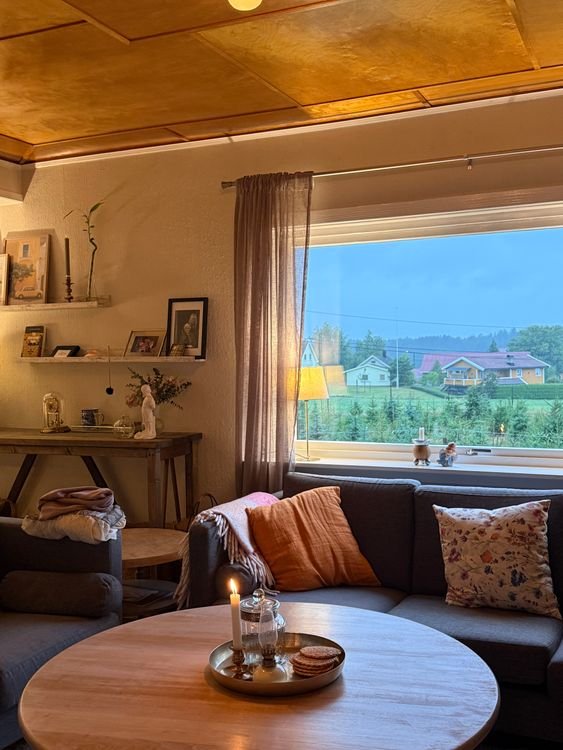
Photo by Kübra Bayraktar on Pexels
Conclusion
home design generator from uploaded images with AI in Homestyler turns the hardest part of decorating into the easiest part: photograph the room you already have, upload it, describe the home you want, and see the finished design in minutes, free. Keep one palette across the house, the lighting warm, the walkways clear, and rebuild the winner in 3D before you buy anything. Your room does not need to be bigger. It needs a good photo and a clear prompt.
Start with one room tonight: upload a photo, generate a few versions, keep the calmest, and let the render decide.
Try Homestyler free. Upload a photo and see the new version in minutes, free.

My name is Mahi Uddin, and I’m a blog writer with over two years of experience specializing in creating engaging, informative content using AI tools. I contribute to InExDecor.com, where I share creative ideas and practical tips for transforming interior and exterior spaces into beautiful, functional environments. With a passion for storytelling and a knack for blending creativity with technology, I strive to craft blogs that not only inform but also inspire readers. When I’m not writing, you can find me exploring design trends or enjoying a good book with a cup of coffee.